
Finally! The exciting and useful part of SSDT – creating the objects in the project and publishing them to the database.
This short example shows how SSDT shifts developers’ focus from the syntax of editing objects to object design; we’ll really see this when data has been added to a table. We’ll create a schema and table, debug the database, edit the table, then re-debug the database. We’ll see SSDT adds the objects to the debug database and edits the objects when changed in the project.
When using SSDT, I organize my database objects in folders by schema then object type. My typical schemas are: stg, dim, fct, clc, and rpt; and the nested are named Tables, Views, Procedures, and Functions.
Create a new schema
- Navigate and Select Project > New Folder
- Name the new folder stg for a Staging schema
- In the Solution Explorer, select the new folder, stg
- Select Project > Add new item…
- Select Security
- Select Schema
- Enter the name stg
- Click Add

Create a new table
- Select the folder stg
- Right click the folder stg
- Select Add
- Select New Folder
- Name the folder Tables
- Right click the folder Tables
- Select Add
- Select Table…
- Name the new table stg.AccountTransactions
- Click Add

You’ll see a new file stg\Tables\stg.AccountTransactions and a new pane with a graphic table designer and T-SQL editor. Don’t add any columns just yet, we’ll do that later as we learn about debugging and publishing databases from SSDT.
Other objects follow the same pattern of adding schemas and tables. SSDT typically uses 1 file per object.
Debug the database
- Using SQL Server Object Explorer in Visual Studio, verify SSDTDatabase is empty.

- Press F5 or Debug > Start Debugging
- Review the Output window View > Output

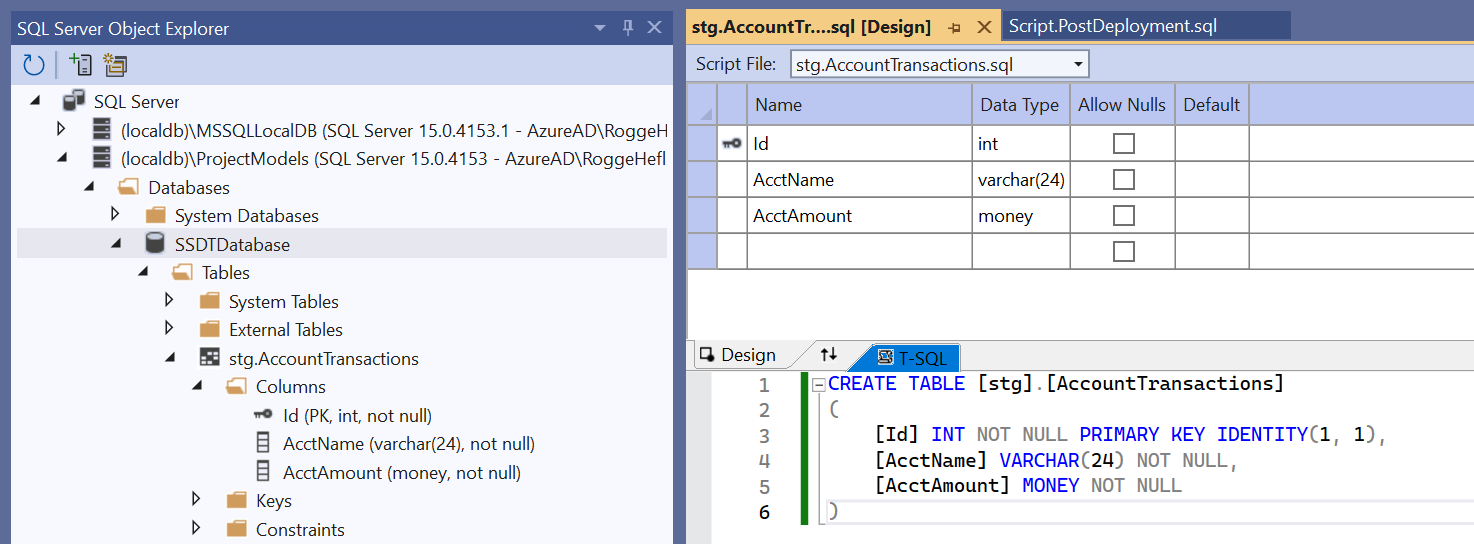
- Return to SQL Server Object Explorer and notice a new table: [stg].[AccountTransactions]. Further inspecting this table shows it has the same definition as the project – only one column.

Edit the table
Obviously the identity column is not really useful. I’ll use the T-SQL Editor and add two columns [AcctName] and [AcctAmount].
The T-SQL editor works just like SSMS, What ever you type to create a table in SSMS, SSDT will accept. SSDT will also validate any dependencies which we’ll see later.
I lied: One exception exists: CREATE TABLE. SSDT will send the correct commands to the debug database to add these two columns.
- Edit the table, code snippet for ‘fast’ programming
- Press F5
- Review the Output window
- Review the database in SQL Server Object Explorer
CREATE TABLE [stg].[AccountTransactions]
(
	[Id] INT NOT NULL PRIMARY KEY IDENTITY(1, 1),
	[AcctName] VARCHAR(24) NOT NULL,
	[AcctAmount] MONEY NOT NULL
)
- Expanding the table shows the two new columns:
 Rogge Heflin