
SSDT has can execute two types of scripts: Deployment and Build. This post focuses on Deployment scripts that run on the target database before and after deploying or publishing the database to a server.
In this post we’ll use a Post-Deployment Script to add data to a table using two techniques 1) directly from the script and 2) calling another script. The second method allows for script organization, re-use, and easy on-off with commenting. This examples use static data, but the source can be any database the deployer/publisher has access.
- Overview
- Create Post-Deployment Script
- Add Data with Post-Deployment Script
- Organize Post-Deployment with scripts
- Details
Overview
Pre and Post deployment scripts are written in T-SQL and are used for clearing tables, inserting data, or maybe some type of validation. These can be quite powerful for populating a database with testing or training data.
Deployment Scripts run in this order:
- Pre-Deployment
- Deployment or Publishing
- Post-Deployment
Pre-Deployment scripts will error if the object hasn’t been created during the deployment phase, so we focus on the post-deployment script in this post. Variables and temp tables exist through out the deployment process even if they reside in different files; we’ll examine this by forcing a deployment error.
Microsoft provides more details here:
https://learn.microsoft.com/en-us/sql/ssdt/how-to-specify-predeployment-or-postdeployment-scripts
Create Post-Deployment Script
- Right click the project SSDTDatabase
- Select Add
- Select New Folder
- Name the folder Deployment
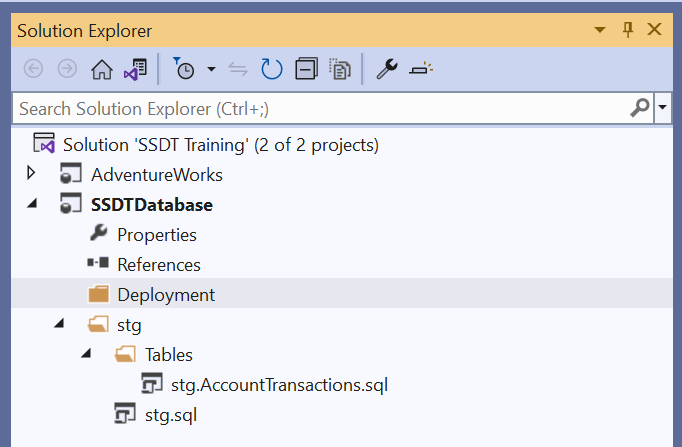
- Right click the folder Deployment
- Select Add
- Click Script…

- Select Post-Deployment Script
- Name the file Script.PostDeployment.sql (Remove the ‘1’)
- Click Add
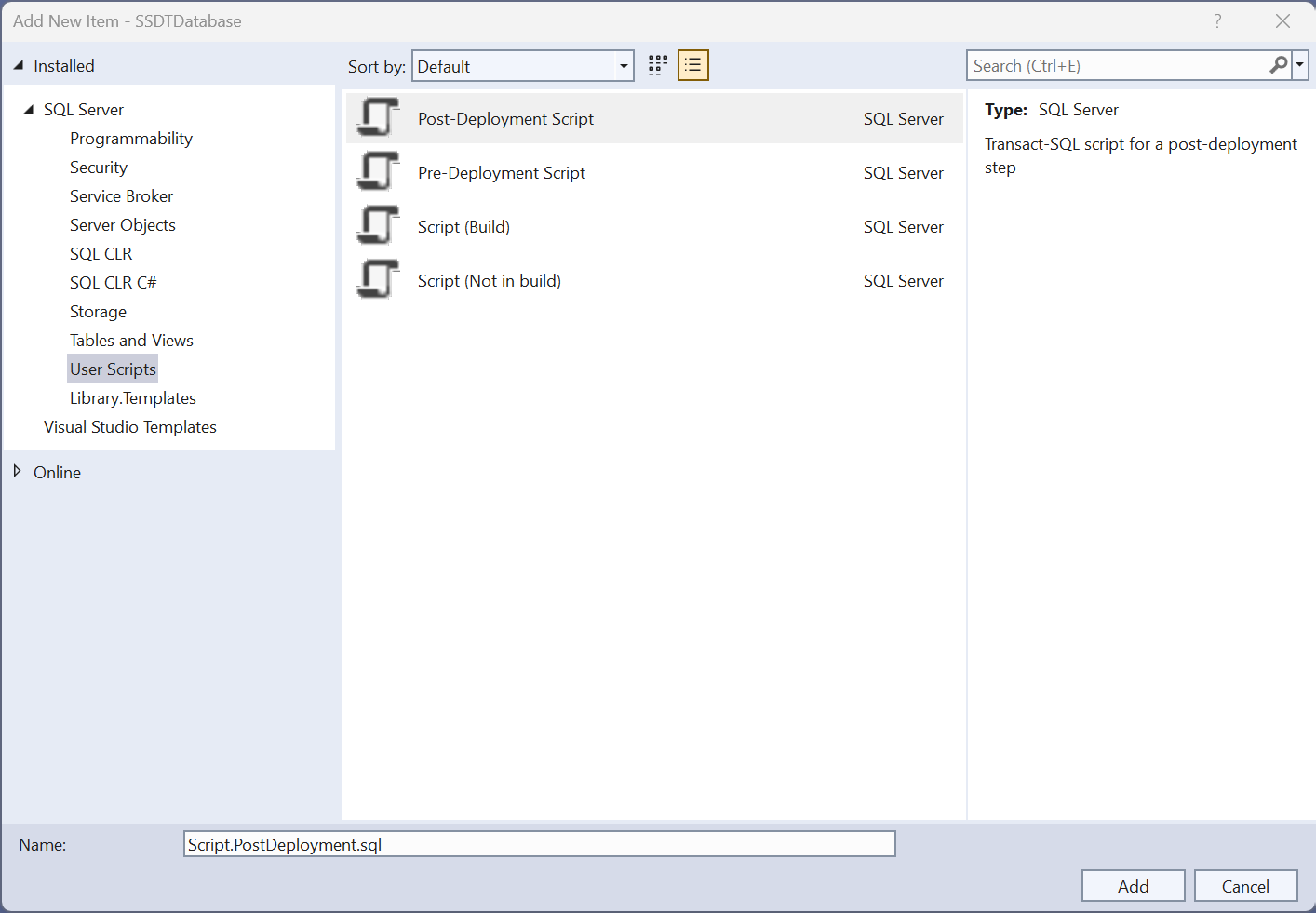
The file Script.PostDeployment.sql is added to the Solution Explorer and the script opens in a new pane for editing.

Add Data with Post-Deployment Script
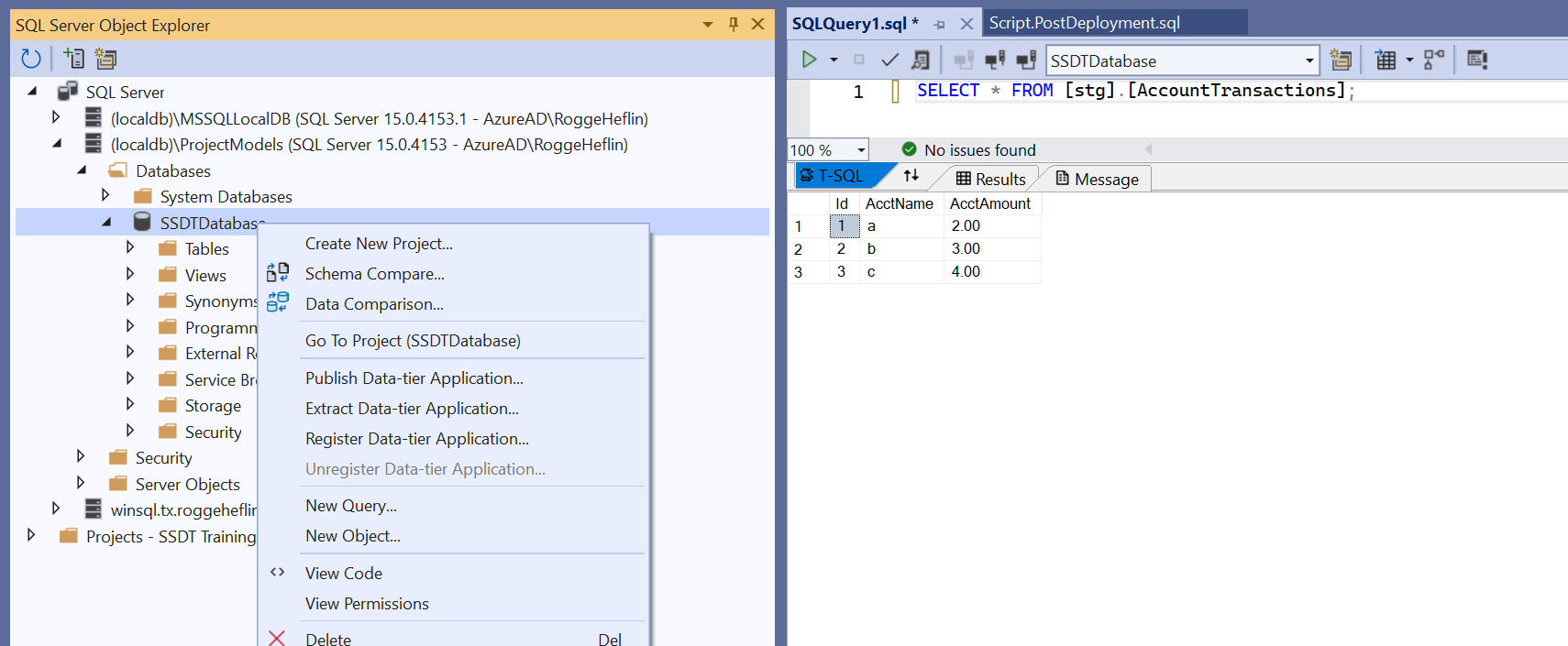
We’ll edit the post deployment script to add data to [stg].[AccountTransactions]. We’re going to use a WHERE clause so duplicate data is not inserted into the table.
- Copy and Paste the code into Script.PostDeployment.sql
- Press F5
- Use SQL Server Object Explorer to review the data
INSERT INTO [stg].[AccountTransactions]
(
	[AcctName],
	[AcctAmount]
)
SELECT
	[t].[AcctName],
	[t].[AcctAmount]
FROM (VALUES
	('a', 2.00),
	('b', 3.00),
	('c', 4.00)
	) [t]([AcctName], [AcctAmount])
WHERE
	([t].[AcctName] NOT IN (SELECT [x].[AcctName] FROM [stg].[AccountTransactions] [x]));
Organize Post-Deployment with scripts
Adding data to multiple tables or running complex operations can create a long Post-Deployment script, luckily, a script can call other scripts:
- Create a new folder in Deployment called stg.
- Right click the folder stg (verify it is the one nested in Deployment)
- Select Add
- Click Script…
- Select Script (Not in build)
- Name it insert.stg.AccountTransactions.sql
- Click Add
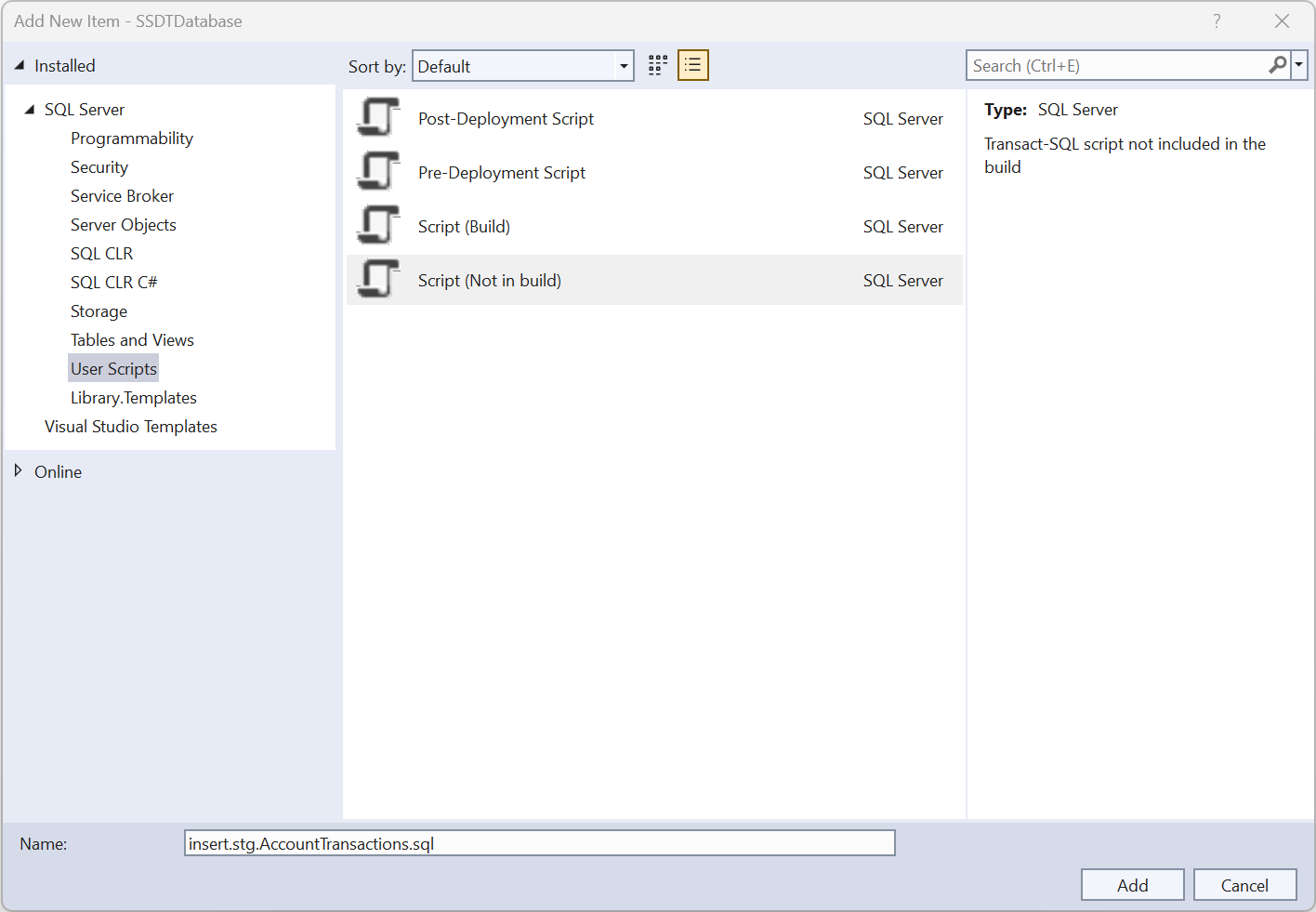
- Like before the script window opens in a new pane
- Copy and Paste the code into insert.stg.AccountTransactions.sql
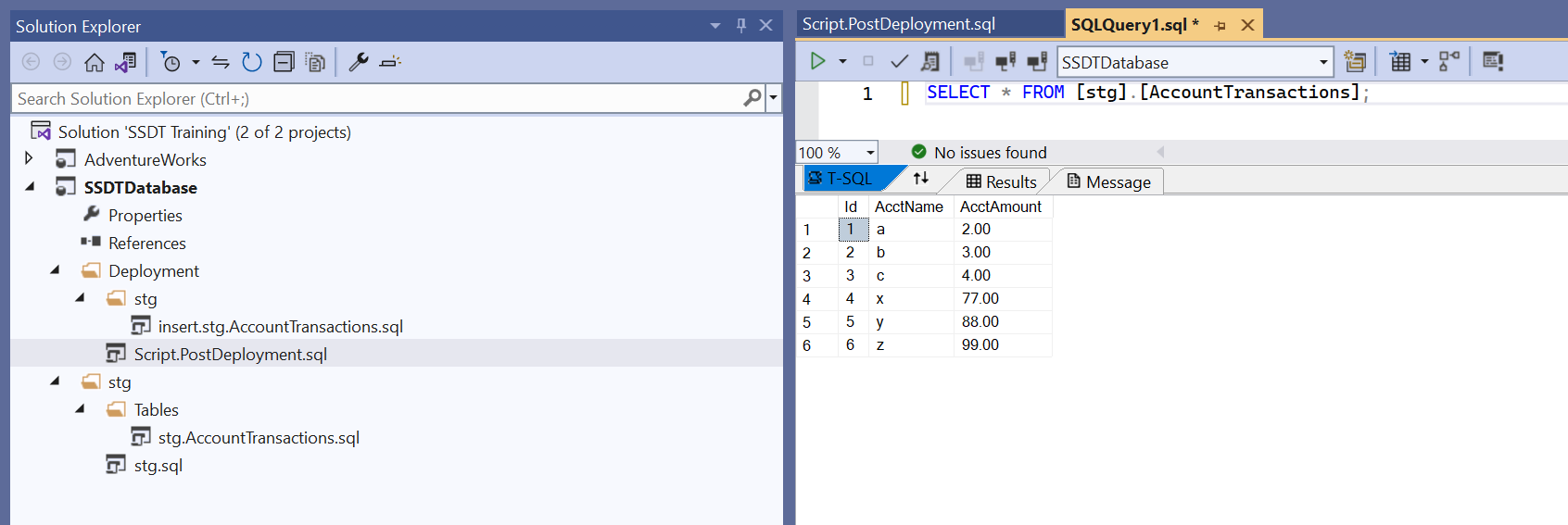
- Note the data is different
INSERT INTO [stg].[AccountTransactions]
(
	[AcctName],
	[AcctAmount]
)
SELECT
	[t].[AcctName],
	[t].[AcctAmount]
FROM (VALUES
	('x', 77.00),
	('y', 88.00),
	('z', 99.00)
	) [t]([AcctName], [AcctAmount])
WHERE
	([t].[AcctName] NOT IN (SELECT [x].[AcctName] FROM [stg].[AccountTransactions] [x]));
- Open Script.PostDeployment.sql
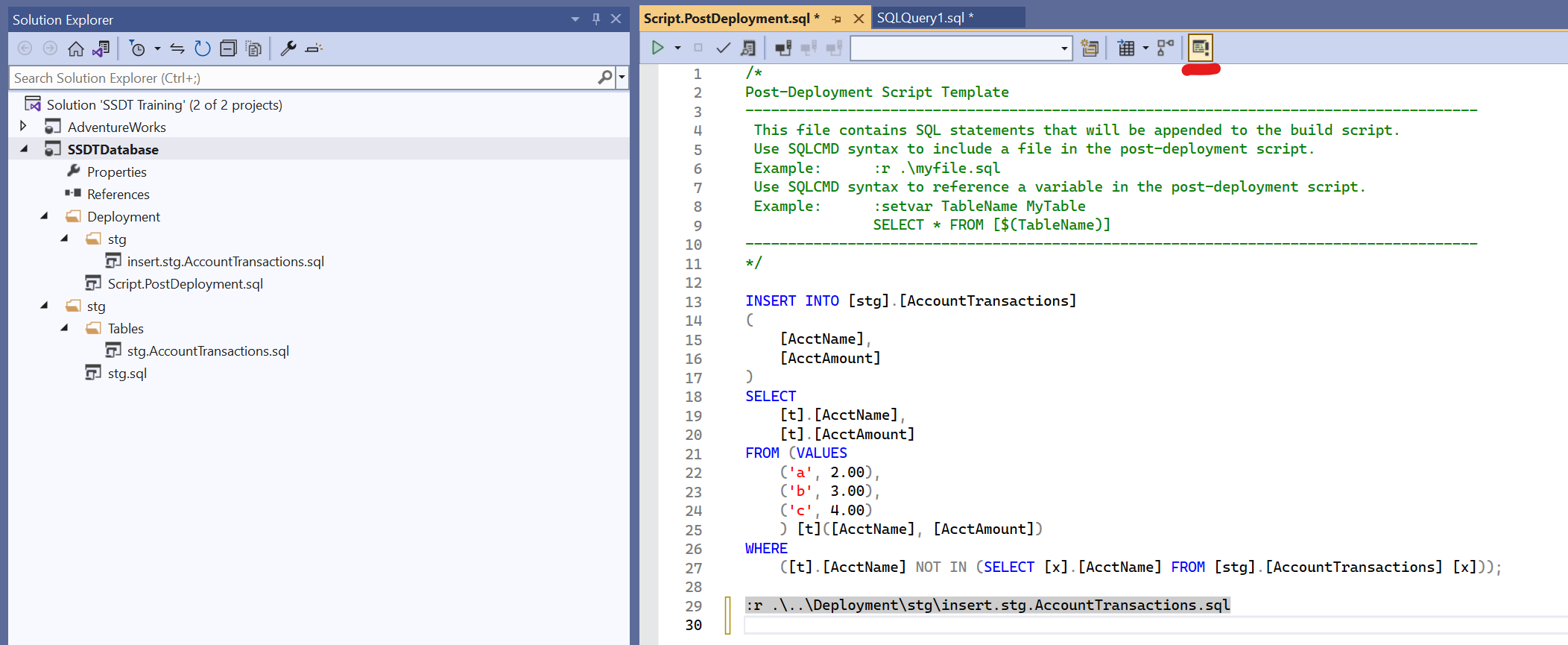
- Add the following code beginning with :r
- Press F5
- The code looks like it will error, but it will not
- Deployment scripts run in SQLCMD mode
- Click the SQLCMD mode button on the left side of the SQL editor pane
- You may have to press enter again after the :r line to register the code line
:r .\..\Deployment\stg\insert.stg.AccountTransactions.sql
- Use SQL Server Object Explorer to review the data
Details
The Post-Deployment Script is executed from the hidden bin\debug folder. This is important when we traverse project folders and files to find our organized deployment scripts.
Microsoft has more SQLCMD information beginning here:
 Rogge Heflin