
Its easy: Import an existing database into a new SSDT project.
We’ll use AdventureWorks2017, which can be downloaded from Microsoft, or any database where you can read the Data Definition Language, DDL. The download file and instructions are here
https://learn.microsoft.com/en-us/sql/samples/adventureworks-install-configure?view=sql-server-ver16&tabs=ssms
Import Existing Database
The key is starting with a SSDT project without any SQL objects – feel free to adjust the project project properties before importing – then right click the project and select Import > Database…
Here are the detailed steps:
New Project
- Create a new SQL Server Database Project named AdventureWorks
- Open Properties and change these settings
- Project Settings > tick Include schema name in file name
- Build > Treat Transact-SQL warnings as errors
Import Database
- Right click the project, select Import > Database… and a wizard will guide you though the steps
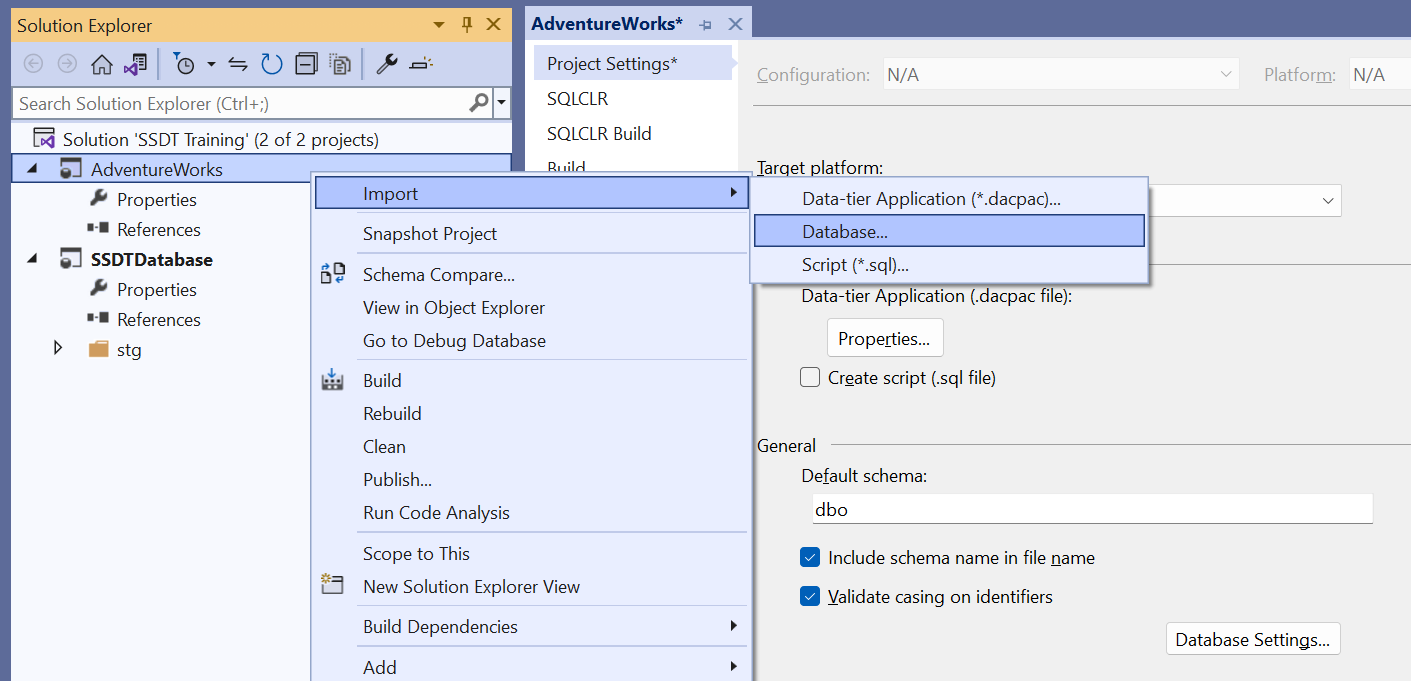
- Click Select Connection…
- Enter the connection details
- Click Connect
- Select Folder structure: Schema\Object Type
- Click Start
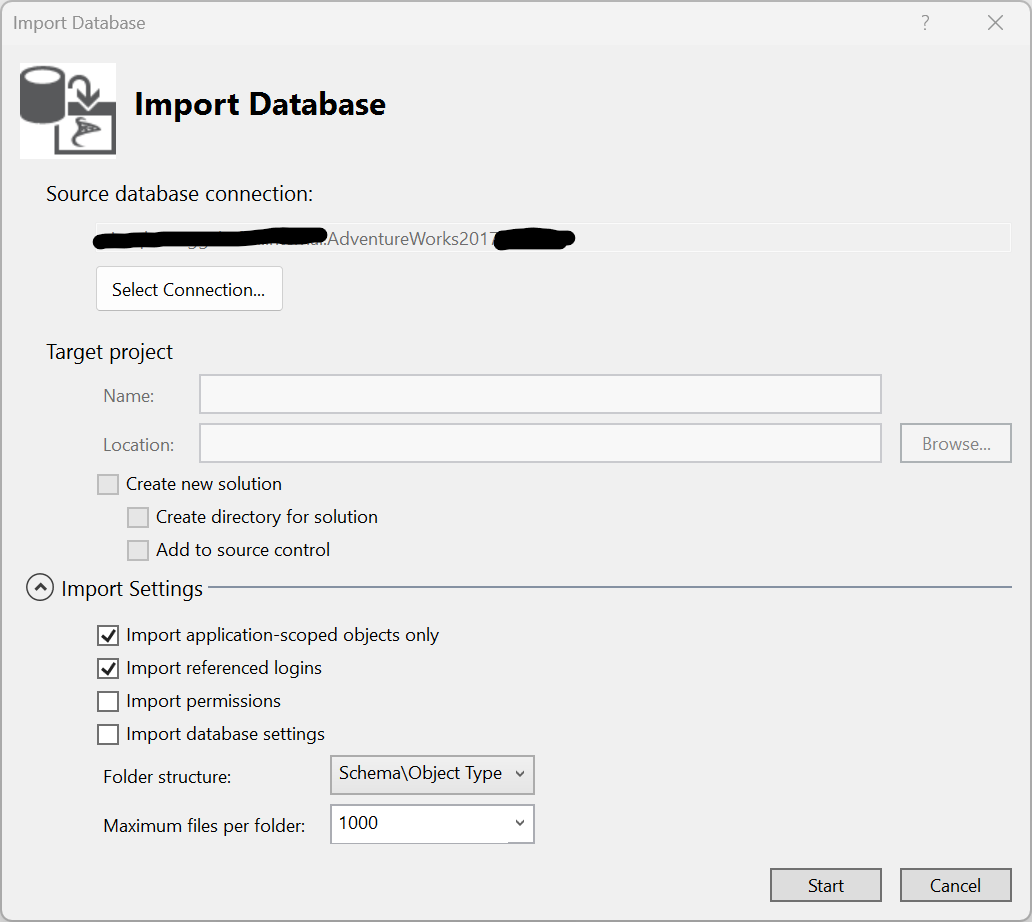
- Click Finish

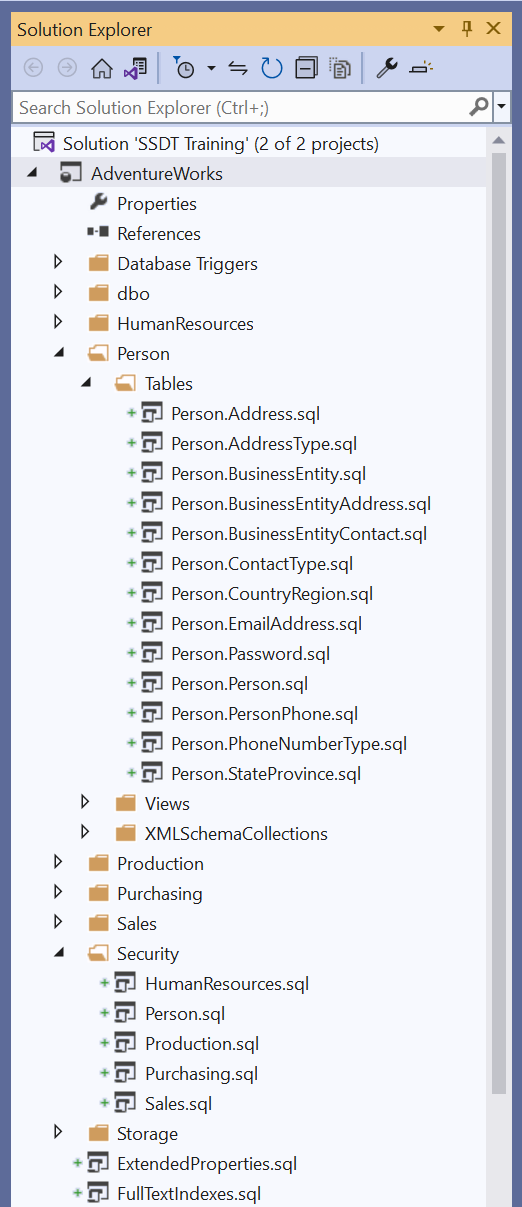
- Review the Solution Explorer for the imported objects
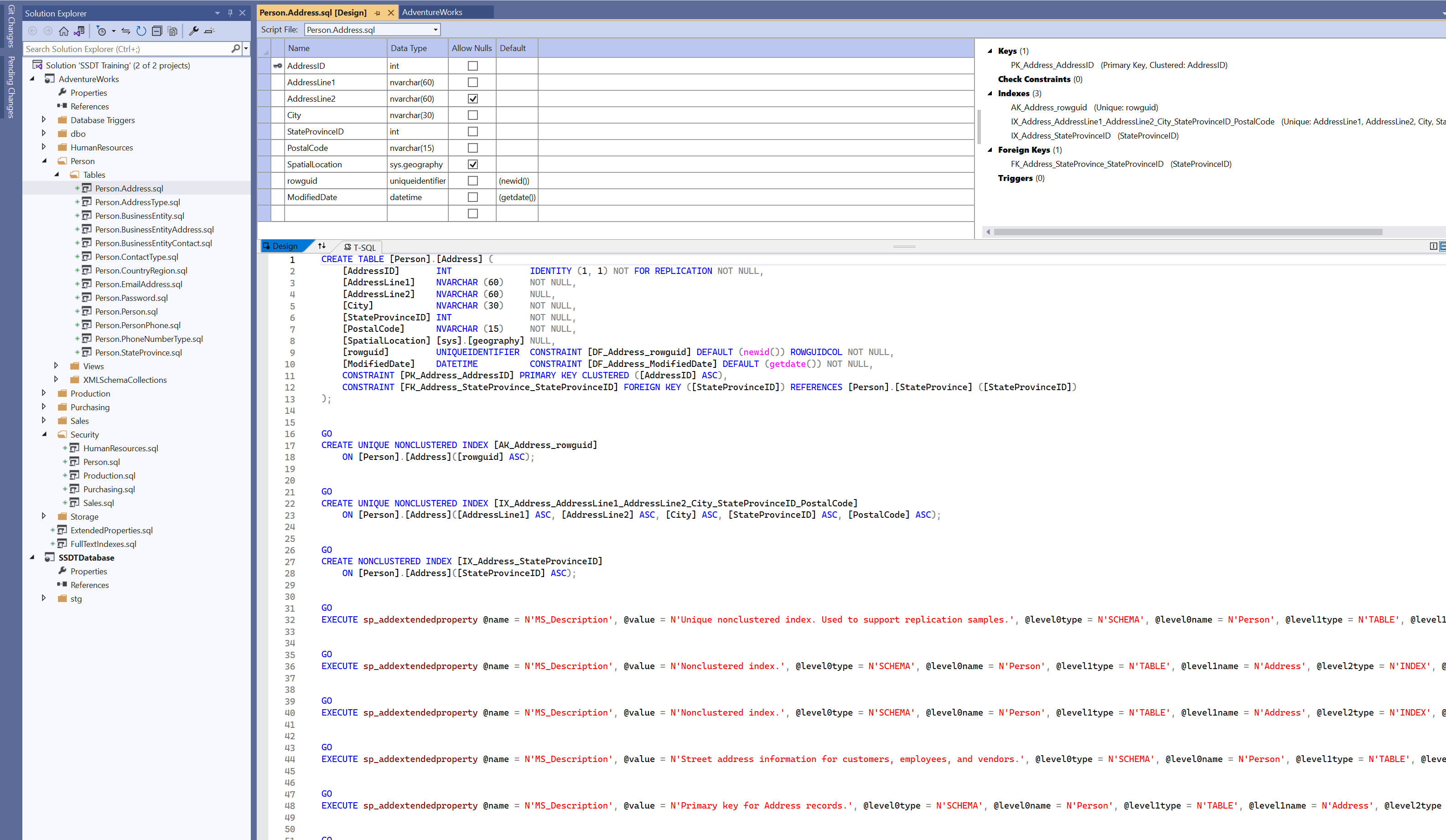
- Double click Person.Address and review the table
 Rogge Heflin