
This blog targets an audience with version control, Visual Studio, SQL Server Management Studio (SSMS), and SQL Server development experience.
We’re going to discuss the database development pertaining to a solution-based paradigm; administration, performance tuning, and backup/restore are out of scope.
Upcoming Topics
- Visual Studio Solution with Database Projects
- Debug Database
- Publish Database
- Source Control
- Events: Build and Publish
- Templates
- Additional Features
Installation
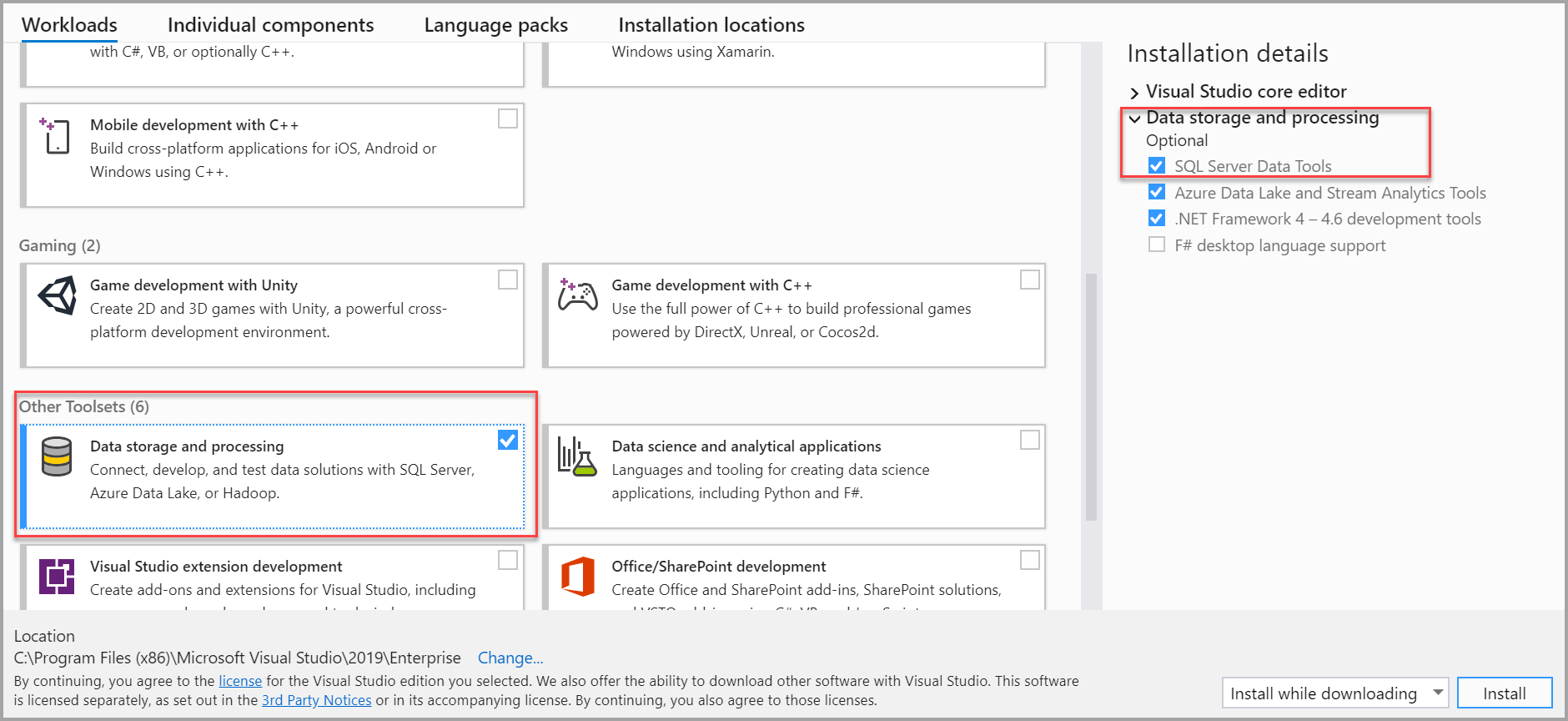
When installing or modifying Visual Studio, verify Data storage and Processing: SQL Server Data Tools workload is selected. IF Visual Studio is already installed, use Visual Studio Installer to modify the installation and add the Data storage and Processing workload.
Please use Microsoft’s resources to download installation files and read instructions:
- Visual Studio – Community Edition includes SSDT
https://visualstudio.microsoft.com/ - SQL Server Data Tools (SSDT)
https://learn.microsoft.com/en-us/sql/ssdt/download-sql-server-data-tools-ssdt - SQL Server Management Studio (SSMS)
https://learn.microsoft.com/en-us/sql/ssms/download-sql-server-management-studio-ssms - SQL Server – Developer Edition is preferred
https://www.microsoft.com/en-us/sql-server/sql-server-downloads
Verification
- You can create/drop a database in a SQL Server
- From Windows, Open Visual Studio Installer > Click Modify > Scroll to Other Tool Sets > Verify Data storage and Processing: SQL Server Data Tools workload is selected
- Open Visual Studio
- Create an Empty Solution > Add a project > Select Project Type: SQL
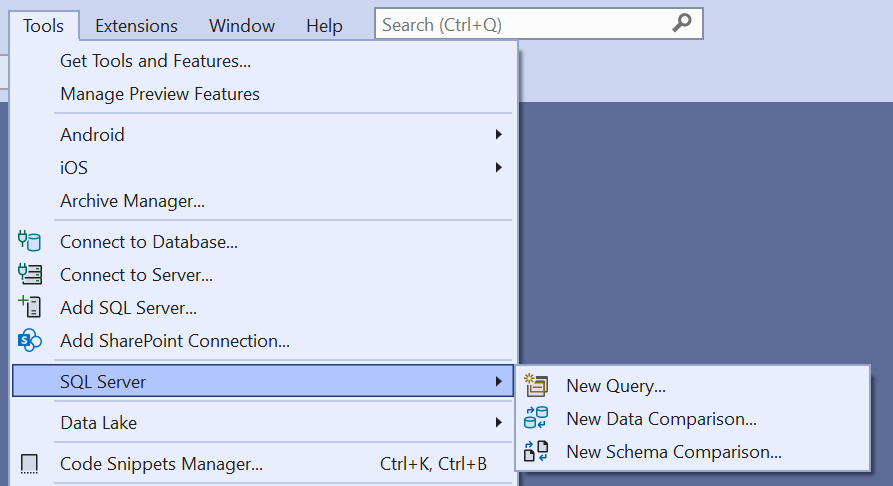
- Menu > Tools > SQL Server > Do three sub menu options exist
 Rogge Heflin